Assign Permission Sets
Assign Permission Sets Tab
The assign permission sets feature allows you to rapidly select multiple permission sets to be assigned to multiple users. You can assign users now, or you can schedule the user to be added to the permission set at a later date and time. There is no limit to the amount of permission sets or users that you can add.
Step-by-Step Instructions
Search and Select Permission Sets
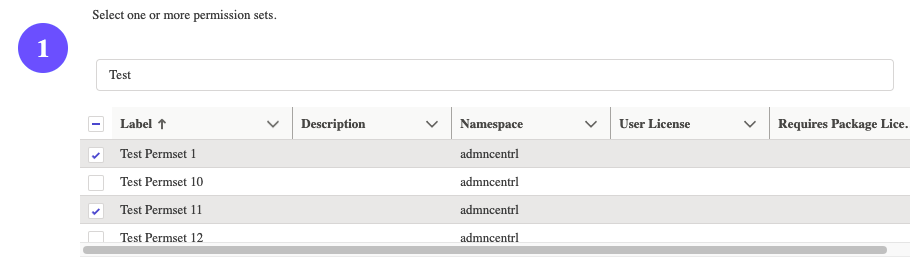
Search for the permission sets that you want to add users to and select the permission sets. The users table will show available users that can be added to the permission set.
Filter Users (Optional)
You can filter the user table by selecting certain profiles, roles, groups, or queues. Each selection is considered And. For example, if you selected the System Administrator profile and the CEO role, your users would need to have both values in order to be shown.

Select Users and Assign
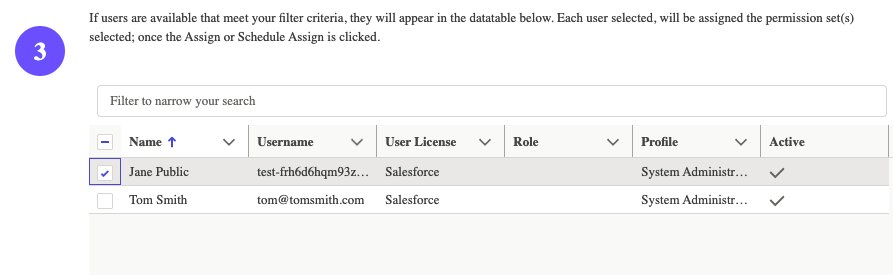
Search and select the users that you want to add. If you selected a permission set that is part of a managed package that requires you to assign users a license, you can check the option "I would like to assign the permission sets and application licenses at the same time."
Review Results
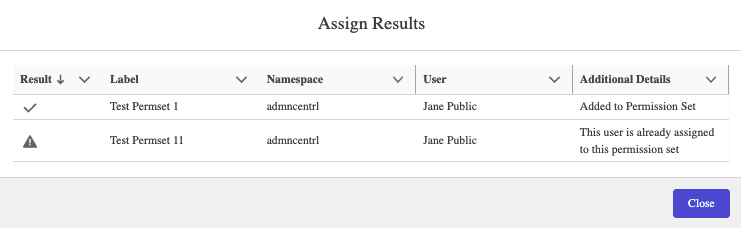
Click Assign to assign users. A results modal will be displayed. If there were any failures you will see the reason why in the additional details.
Scheduled Assign
This feature allows you to schedule permission set access assignment and removal. This feature is useful if you only want to give a user access for a short period of time. Once a permission set is scheduled, a process will run every 15 minutes to see if there are any permission set assignments or removals that need to happen.
Scheduling Options
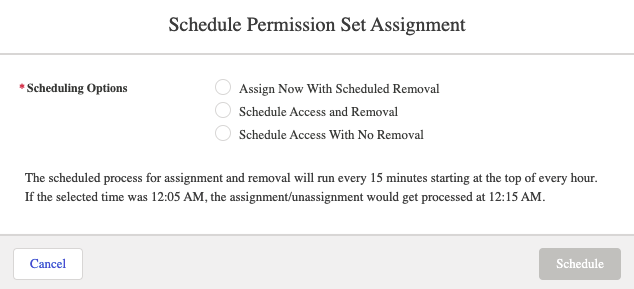
After setting up your permission set assignment details, clicking the Schedule Assign button will open a modal that will provide you with additional options.
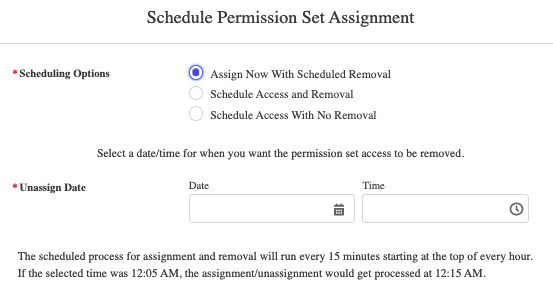
Assign Now With Scheduled Removal
This option will assign the permission sets to your designated users immediately when you click the Schedule button; however, you will also be prompted to provide the date and time you'd like the permission sets to be removed from these designated users.
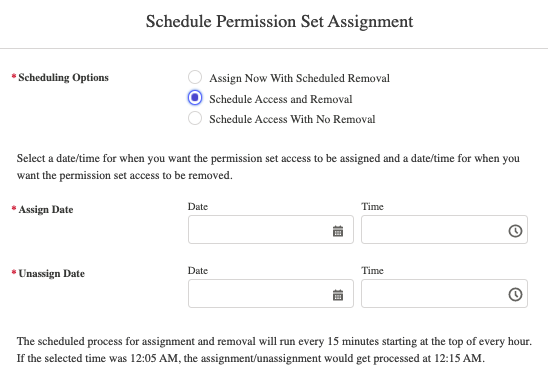
Schedule Access and Removal
This option will allow you to schedule when the permission sets will be assigned, and when they will be removed from the designated users.
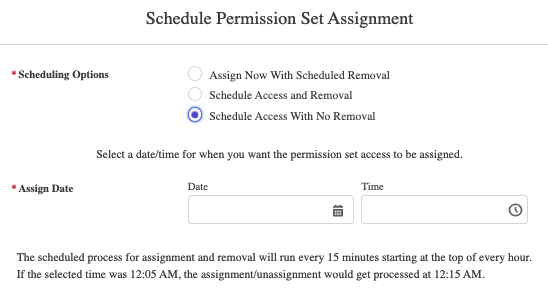
Schedule Access With No Removal
This option will assign the permission sets to the designated users at the date and time scheduled, but will not perform any automated removal process.
Unassign Permission Sets
Unassign Permission Sets Tab
The unassign permission sets feature allows you to select certain users to remove from a single permission set, the option to remove all the users assigned to a permission set, or schedule the permission set access removal.
To unassign users follow the following steps:
- Search and select the permission set.
- The next step is an optional step, but you can filter the user table by selecting certain profiles, roles, groups, or queues. Each selection is considered And. For example, if you selected the System Administrator profile and the CEO role, your users would need to have both values in order to be shown.
- Select the user you want to remove and click Unassign. If you selected a permission set that is part of a managed package that requires you to assign users a license, you can check the option "I would like to remove the permission set and application license at the same time." This will remove users from the permission set and user license for the managed package.



Unassign All
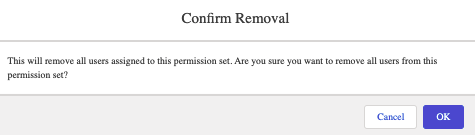
The Unassign All button is a nuclear option for the selected permission set. This operation will unassign all users for the selected permission set, without the user having to go through and select users for unassignment. This is particularly ideal if you have a lot of users assigned to a permission set associated with a managed package that you'd like to uninstall from your Org.
To unassign users follow the following steps:
- Search and select the permission set.
- Click the red Unassign All button
- You will need to select OK in order to remove all users from the permission set.
Schedule Unassign
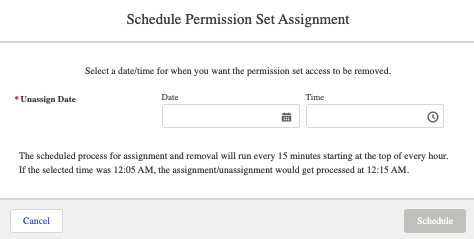
The Schedule Unassign operation functions very similarly to the Schedule Assign operation discussed above. Once you've already designated the profile and users for the permission sets, this operation allows you to schedule the operation to remove access. The Schedule Assign operation has a similar operation, which will net the same result of this operation. The use-case here is that the permission sets are already assigned to a user - perhaps prior to this application's installation or the assignment was made without concern for unassigning but something has come up warranting a mass-unassignment.
Once you have the permission set and users selected, click Schedule Unassign. Select the date and time to have the users removed from the permission set and select Schedule.
Copy Users to Permission Set
This feature allows you to copy users from one permission set to another permission set.
- Select your source permission set.
- Select your target permission set
- Click Copy.
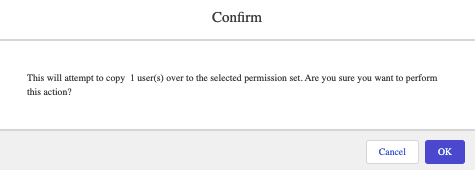
- A modal will pop up confirming that you want to copy the users over. Once you click ok a results modal will show if the users were added successfully or not to the permission set.


Assign Groups/Queues
This feature allows for one easy screen to allow you to add users to groups or queues.
- Search and select the group or queue.
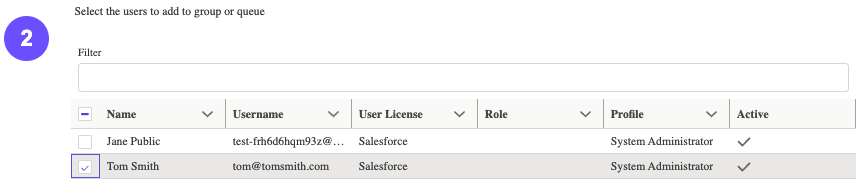
- The table will show users that are not part of the selected group or queue. Select the user you want to add.
- Click Assign


Unassign Groups/Queues
This feature allows for one easy screen to allow you to remove users from groups or queues.
- Search and select the group or queue.
- The table will show users that are not part of the selected group or queue. Select the user you want to add.
- Click Unassign

Permission Search
At the time of this writing, Salesforce® Winter 24 released, in beta, a feature to allow you to search for a given permission access - at the object and/or field level- within all of the permission sets within your org. Our Permission Search feature does this, but also quite a bit more.
Permission search allows you to search across all of your permissions sets for Object and/or Field level access, as well as Visualforce™ page access, Apex class access, and System specific permissions. In addition, the data is grouped by Permission Set and Permission Set Group. The results are returned by Permission Set, and each Permission Set within a Permission Set Group that has that access.
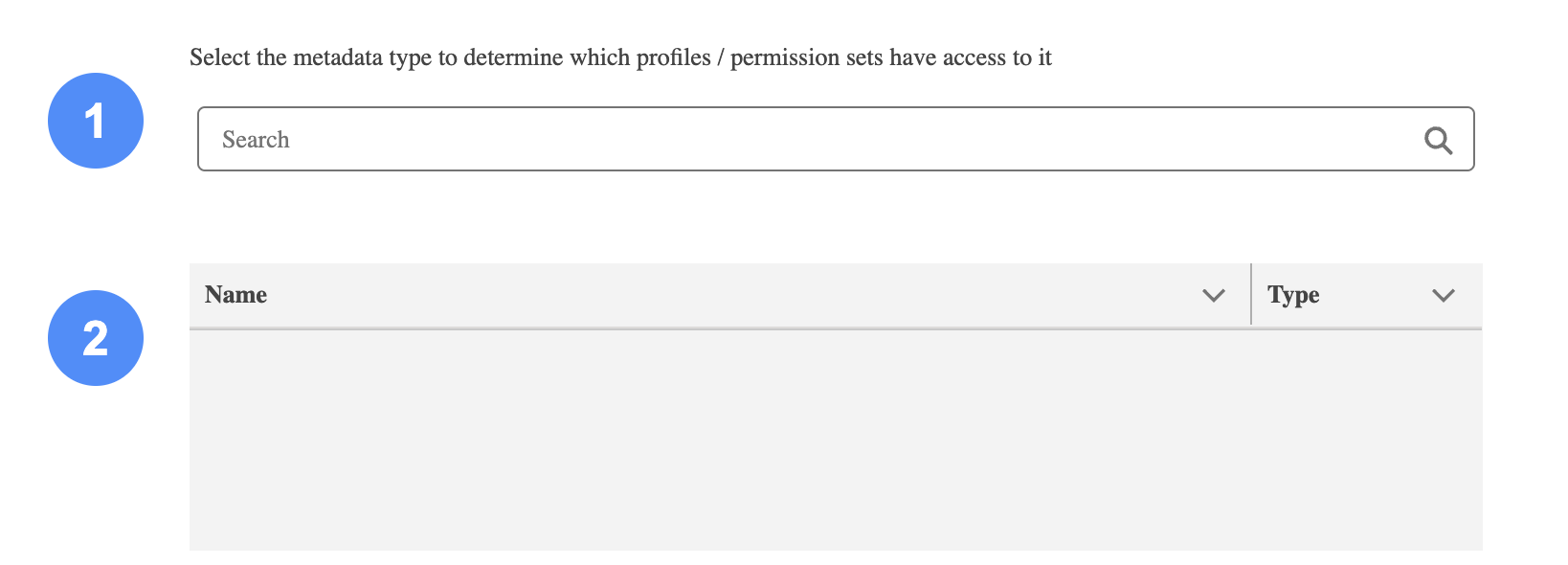
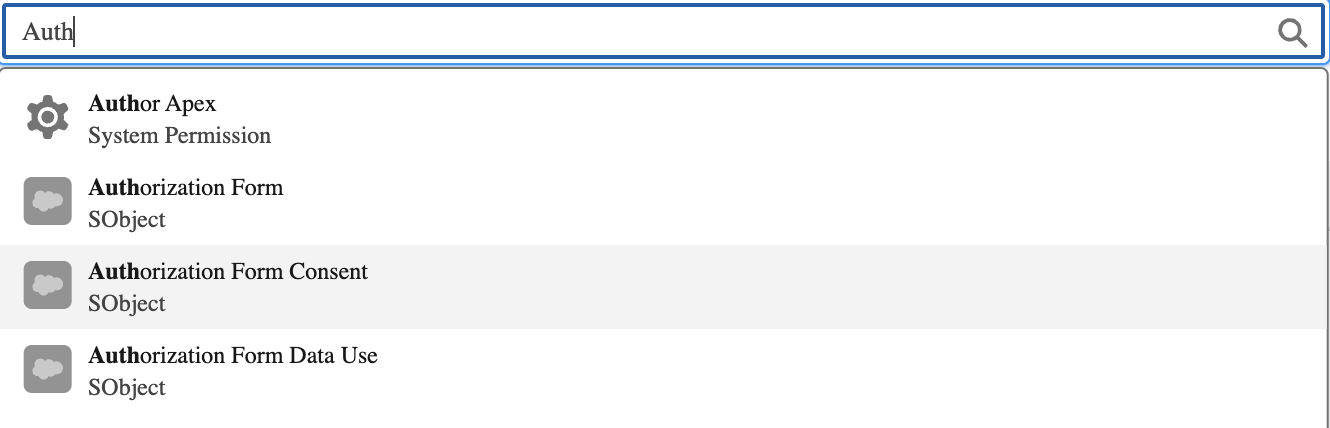
- Within the search section, enter in the permission you're interested in. In the example below, the search term was "Auth", you can see the application is searching for permissions as you type - and provided a variety of options at the Object, Field, Visualforce™ page, Apex Class, and System permission level.
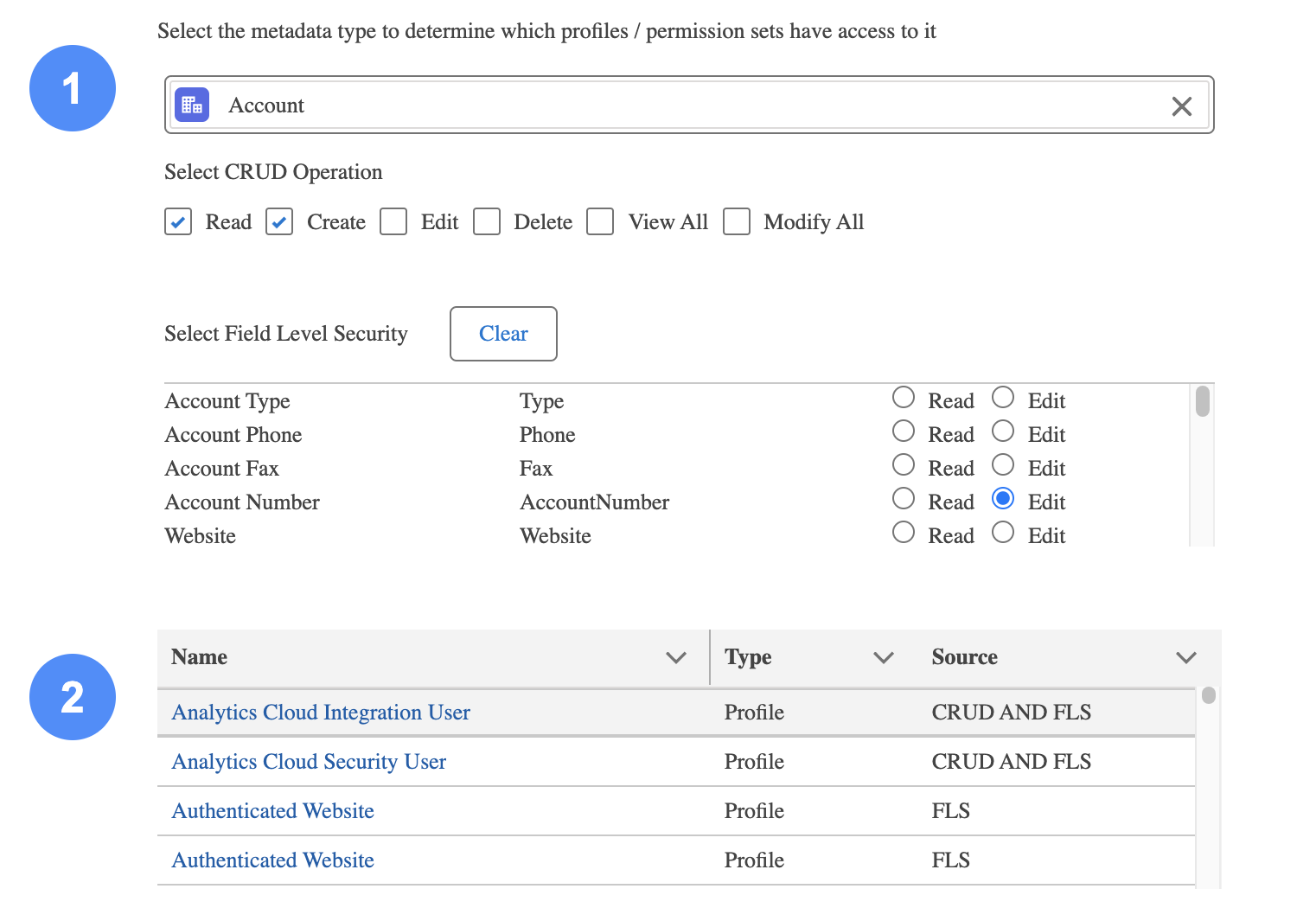
- Entering in an Sobject will also present you with the option to search for the fields within the object. To search for fields, you first need to start with the Sobject name. As you can see in the example below, as you enter in the values -in this example, the search is for Permission Sets with Create and Read on the Account and Edit on the Account Number field- the results populate in the datatable beneath the search. Each permission set within the results table is hyperlinked to the actual permission set, should you want to make any changes following the search. Additionally, not that in the Source column, we are presenting to you how the search was found. CRUD means we found this permission set based off of the Create, Read, Edit, or Delete permision you selected for the Sobject. And FLS reflects the Field Level Security selection you made for the field(s) you checked within the search section.
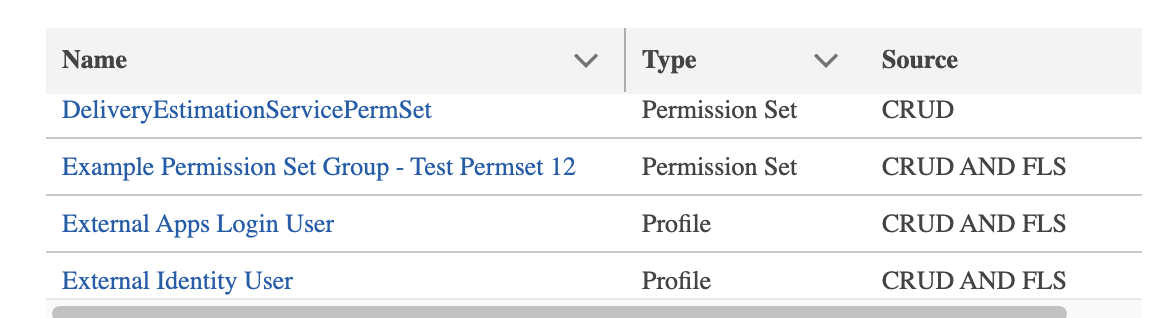
- The datatable of results from your search request is sorted by the Name column, where Permission Set Groups are shown with each Permission Set within the group that meets your search criteria. This means you could see the same Permission Set multiple times, as a single permission set could be grouped within more than one Permission Set Group. The purpose behind this design decision is to allow you to see if a specific permission setting exists within a Permission Set Group - simply scroll down the datatable to search for the group's name- and from there the specific Permission Set(s) that have that your search criteria. The name is hyperlinked to the Permission Set's name, not the Permission Set Group's name.
Permission Change - Read Only
When building permission sets, there are instances where a particular permission set needs to be Read-Only. Normally, this Admins will clone an existing permission set that is used by a group, or role, and begin the tedious work of changing everything over the objects and field permissions to Read only. This feature makes this process of setting a permission set to Read-only a simple and easy one.
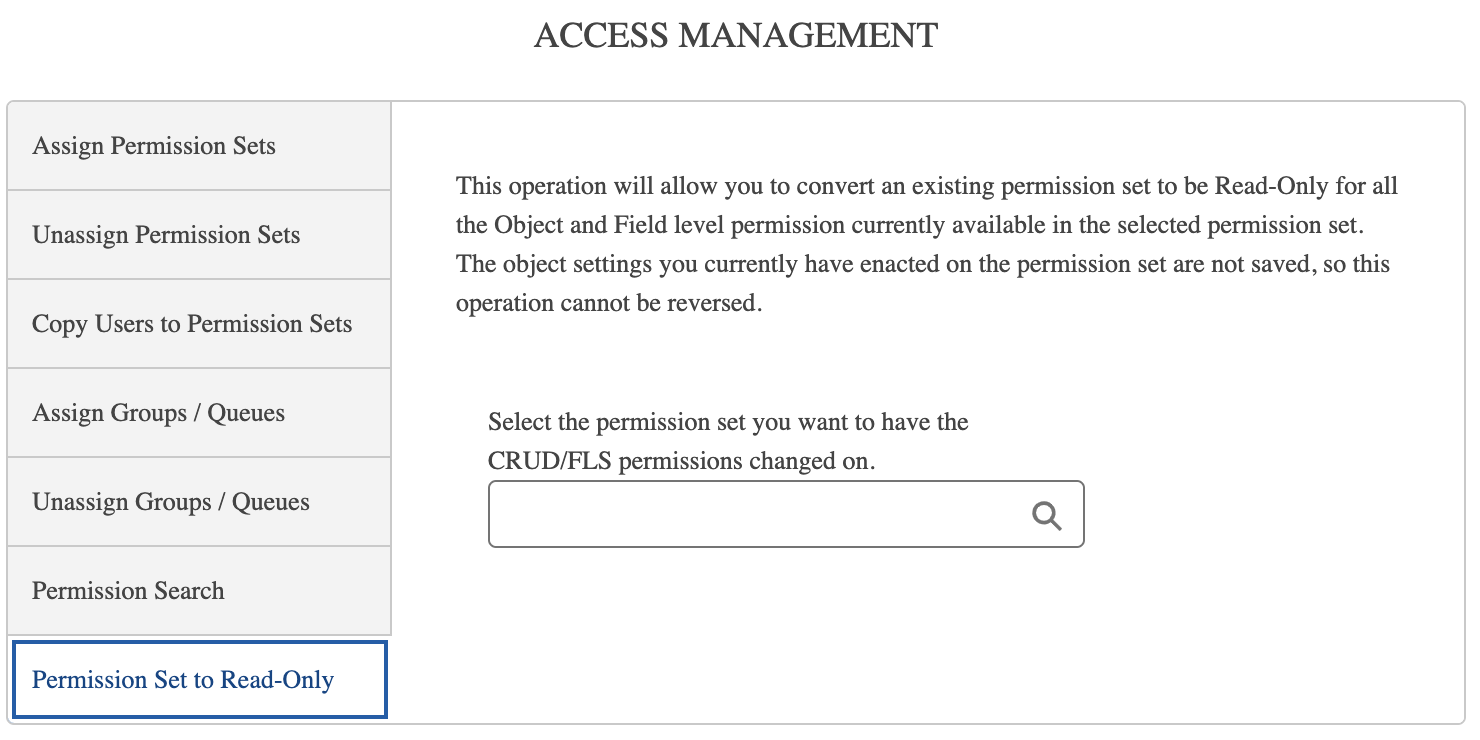
Start by typing the name of the permission set you want to change to read-only, and select it from the search results provided. Then, click the Submit Request button that appears. Double check to make sure you have selected the correct permission set, as this process cannot be undone once your clicked Submit Request.
Given the potential size of the operation, this conversion operation is performed asynchronously using a Queueable operation. Once the work is complete, you will receive an email advising you accordingly. If an error occured, an email will be sent to you advising you as such. The error will also be logged within AdminCentral® Error Logs.