Access Methods
This feature is not part of the standard AdminCentral® package, and requires special activation. Details on pricing can be found on our Pricing page.
AdminCentral Application
Access via the AdminCentral® application page by clicking the Advanced Field History Tracking button.
Application Menu Tab
Access the feature from your Org's application menu by clicking the Advanced Field History Tracking tab.

Setup Advanced Field History Tracking
Follow the steps below to setup a field for history tracking.
Create New Field History Object Setting
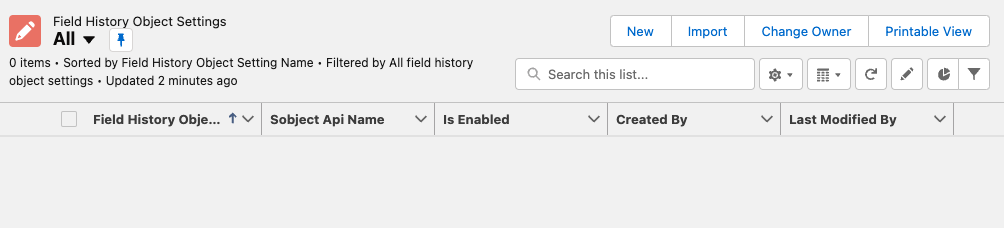
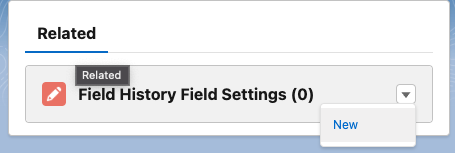
From the Field History Object Setting list view, click the New button.
Enter SObject API Name
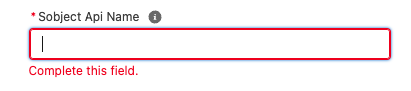
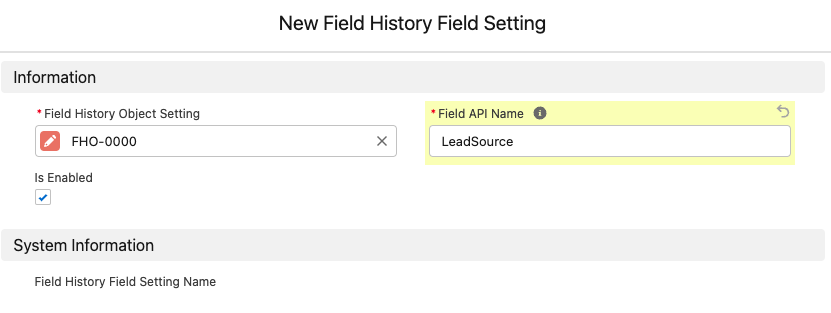
Enter the Sobject API Name for the object the field of interest is associated with.
Important Note
The SObject API Name is case sensitive and must match exactly as it appears in Salesforce.
Warning
It is recommended you copy and paste this value from your Object Manager, to insure accuracy.
Warning
It is recommended you copy and paste this value from your Object Manager, to insure accuracy.
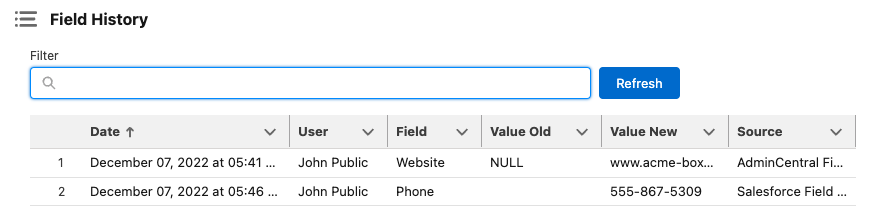
Changes made to the fields you've setup for advanced field history tracking will appear within the Field History Viewer component. As you'll notice in the image below we are also including any native field history tracking you have configured for the SObject as well. Entries that have a Sourcecolumn value of Salesforce® Field History represent fields natively tracking within your SObject's configuration and a value of AdminCentral® Field History reflects field history tracking setup with our Advanced Field History Tracking feature. Finally, you'll also note that we provide you with a Filter box, this allows you to filter the entries by Field, making searching through large entry volumes much easier.
Text Difference Feature
Wihtin the Advanced Field History Tracker viewer we have a feature to help visualize the text changes made within a given field data changed. This text difference feature is only available for fields that are a type of text field: Text, Text Area, Large Text Field, and Rich Text field. Additionally, this is only available for field history operations that are setup using the Advanced Field History Tracking feature. This is because we story to text difference result for that history record within the Big Object in the AdminCentral® application.
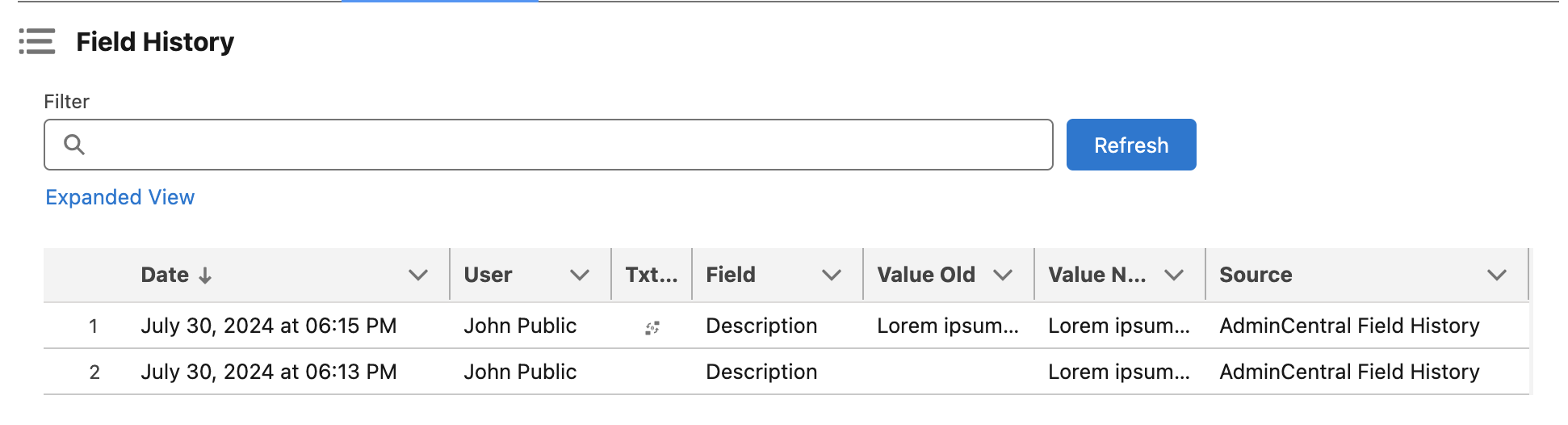
Fields that are eligible for running the Text Difference operation will be presented with icon seen above - represented as a cyclical icon. Clicking this icon will launch the Text Difference operations.
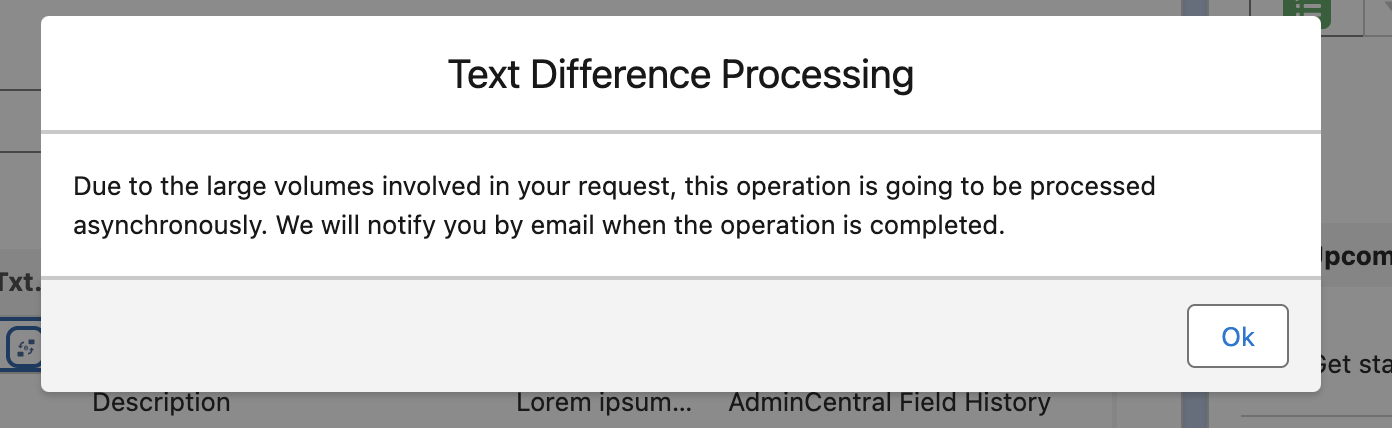
When you click the icon to activate the Text Difference operation for that history entry, you will be presented with a modal. This is because the Text Difference operation is actually quite computationally expensive, and cannot be done in a single transactions without hitting Salesforce® governor limits. So we move this operation into a Queueable, which will process the operation and notify you by email when the operation is complete.
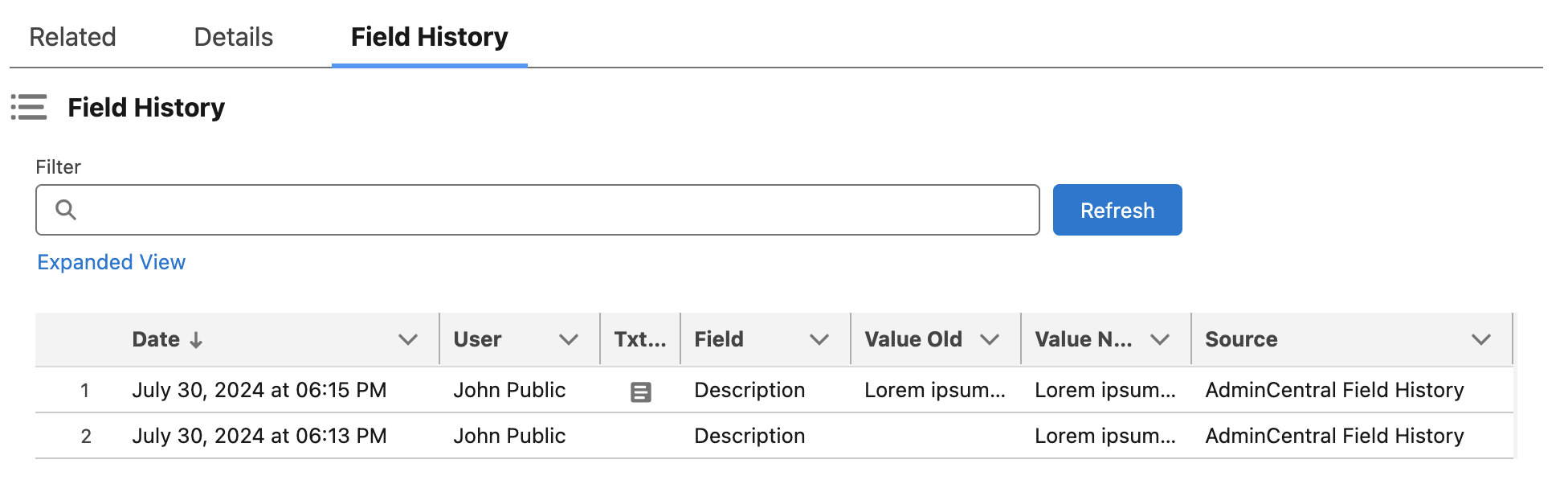
When the Text Difference operation is complete the icon will change to the icon shown above. The results for a Text Difference only needs to be ran once for a given history row - since we store the results of the operation within the same record as the history details within the Big Object in AdminCentral® application.
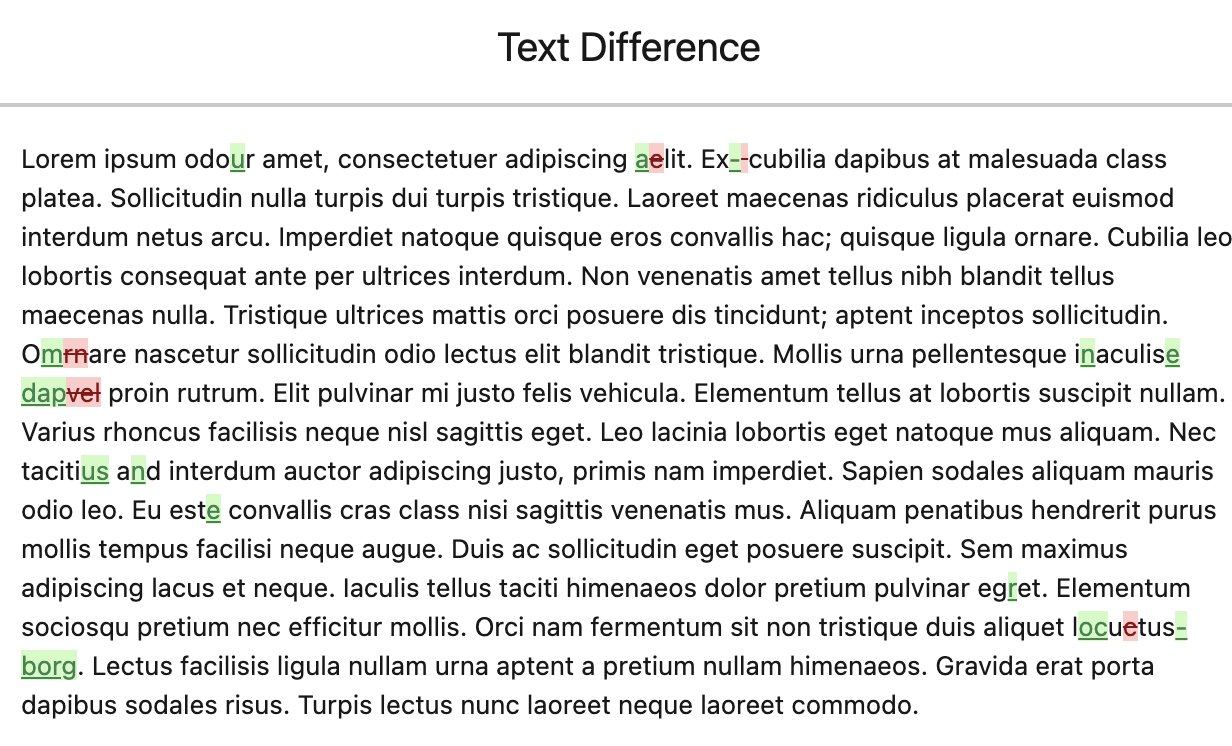
Clicking on this new icon will open a modal revealing the results of the Text Difference operation. The changes where deletions were performed are highlighted red, with a red strike-through. Changes that were additions are highlighted and underlined as green.
Informational
Formatting is not retained when performing Text Difference operations - at this time. Rich Text Field values are converted to plain text prior to the operation executing. For example, if a word was made bold, or italicized, not changes would appear this Text Difference operation because the underlying text did not change. Additionally, the same is true for situations where the text was changed simply by capitalization. Since this is a format change, and not a text change, the value will not appear in the Text Difference results.