Initial Setup
When accessing this feature for the first time, the app may perform a one-time setup process. Once the process is completed the Maintenance screen will load automatically.

One-Time Setup
The initial setup process is automatic and only occurs the first time you access the Maintenance Window feature.
Single Profile
- To restrict the login hours for a single profile, select the profile to change.
- Upon selection of the profile, the existing login hours will be displayed. Change any of the hours to reflect your desired maintenance window timeframe.
- Click Save. This will record your decisions to a record for scheduling.

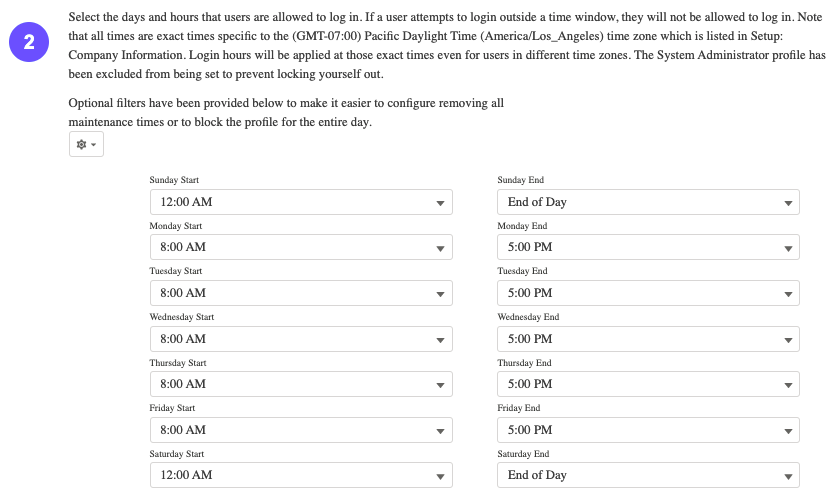

If the save was successful, you will get a success confirmation.
Multiple Profiles
- To restrict the login hours for multiple profiles, select the profiles to change.
- Upon selection of the profile, the existing login hours will be displayed. Change any of the hours to reflect your desired maintenance window timeframe.
- Click Save. This will record your decisions to a record for scheduling.
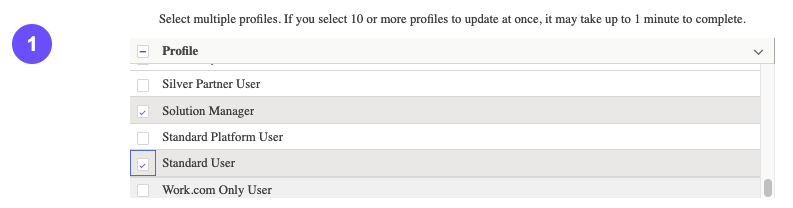
If the save was successful, you will get a success confirmation. (*Note if you change 10 or more profiles at once, it may take up to a minute to complete the change.)
Schedule Maintenance
This feature allows you to schedule a future time frame when you don't want users to log into the org. This is useful when you have planned maintenance. Once the Maintenance End Time has lapsed, the Profiles login hours will return to their original state. Click the Schedule Maintenance Tab.
- Select the profiles you want to lock out for the scheduled maintenance.
- Populate the Maintenance Start and End Times, and login hours for the maintenance window.
- Click Save
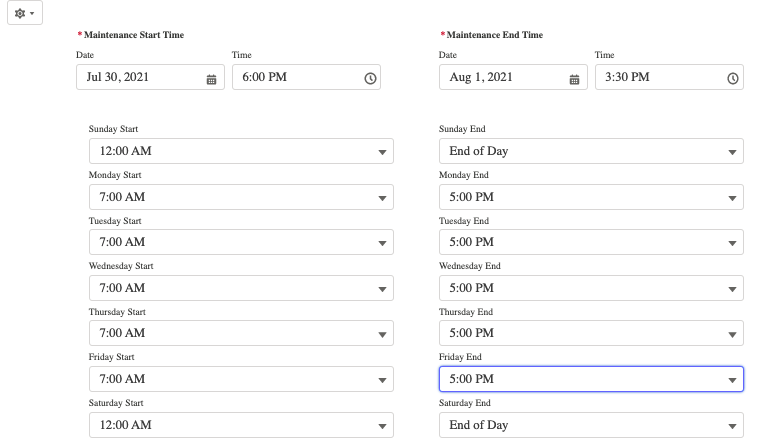
If the save was successful, you will get a success confirmation.
Schedule Maintenance History
The schedule maintenance history tab will show a history of all the maintenance records. The table displays the start and end date of the window and the total number of profiles that are assigned along with the current status.

Record Actions
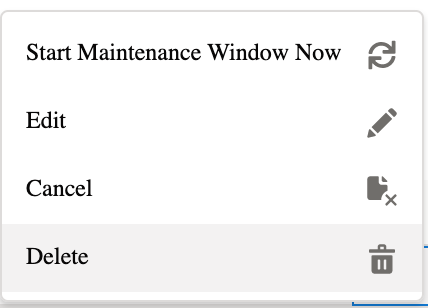
Clicking on the down arrow next to each record will display different options that are available based on the status of the maintenance record. (Note "Start Maintenance Window Now" will only show if the maintenance window is the same day as the current date)
Scheduled Maintenance Flow
Once the scheduled maintenance window starts The maintenance window will move through the following statuses until the window has ended:
- Starting Job - Maintenance window job is starting
- Getting Current Hours - Gets the current login hours for each profile in window
- Assigning Hours - Assigning the specified login hours for each profile in window
- Maintenance Hours Assigned - The login hours have been assigned
- Assigning Previous Hours - Reverts the login hours to what they were before window started.
- Completed - The maintenance window has ended.
Optional Filters
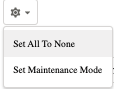
When using the Single Profile, Multiple Profiles, or Scheduled Maintenance tabs, Click the gear icon to see options for setting different hour values very quickly.
- Set All To None - Will set all the hours to none
- Set Maintenance Mode - Will set the login hours to 12:00 AM - 11:59 PM