Clone Users
Clone users allows you to select an existing user and very easily clone the user with all the related permission set assignments, permission set license assignments, public groups and queues.
Step-by-Step Instructions
Access User Management
Click on User Management from the AdminCentral® App page.
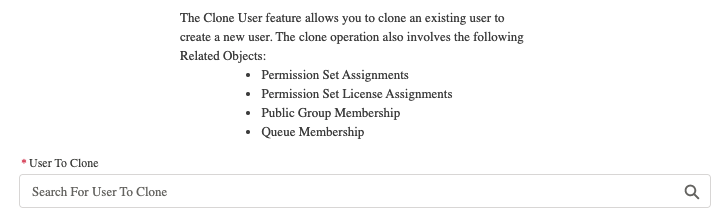
Search and Select User
Search for the User to clone and select user.
Configure New User Details
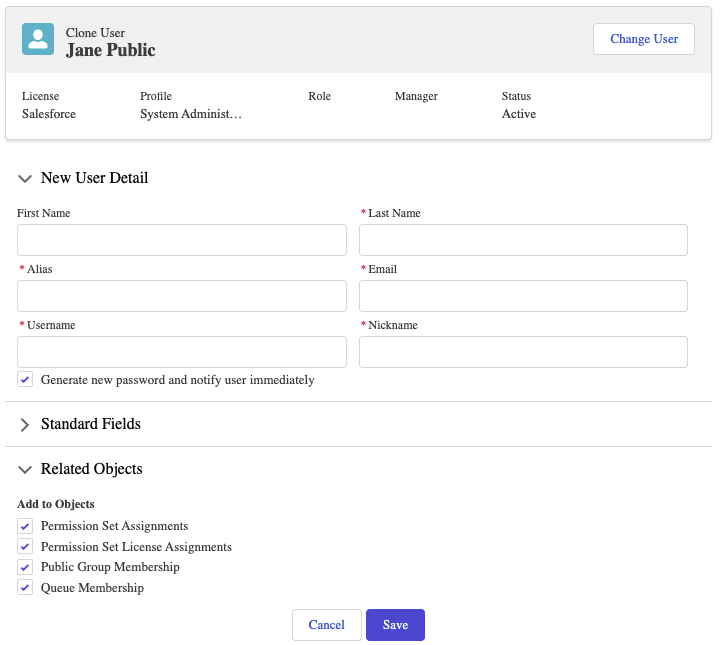
Enter in the new user's First Name, Last Name. This will automatically assign the user alias field. Next add the email address which will automatically assign the username and nickname fields. If you want to change any of the standard or custom field values you can expand each section and change any of the values. By default the new user will get a new password generated and they will be notified automatically. To not have a password generated deselect the checkbox. By default, the related objects are checked. If the user you are cloning is in any of the related objects, the new user will be assigned to the same related objects that you are cloning. Click on Save to clone the user.
Review Success
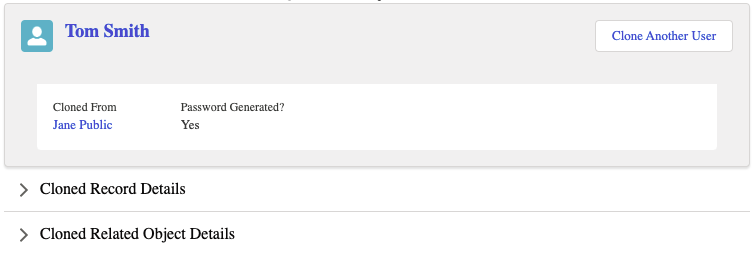
If the user was cloned successfully you will get a confirmation screen. From this screen you can view the values assigned to the user and all the related records the new user is assigned to. If you have another user to clone, you can click on the clone another user button.
Freeze/Unfreeze Users
This feature allows you to freeze or unfreeze multiple users at a time.
Freeze Users
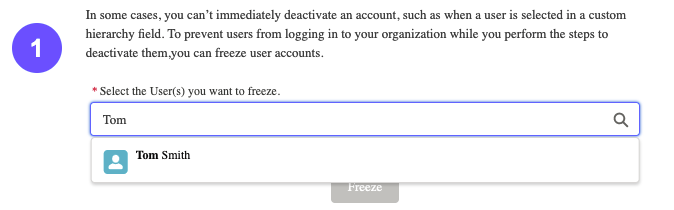
To freeze users, search for the users that you want to freeze and select each user. Once you have selected each user to freeze, click on the freeze button. If the users can be frozen, the screen will refresh and the users should be added "Frozen Users" list.
Unfreeze Users
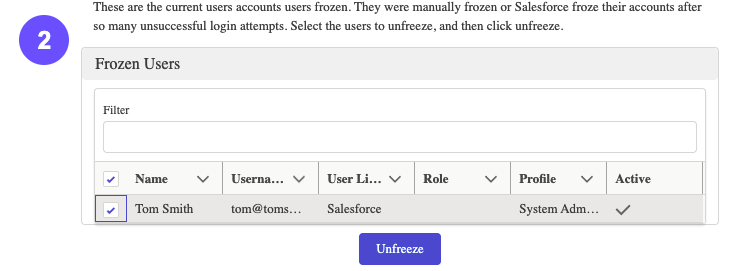
To unfreeze users, search for the users that you want to unfreeze and select each user. Once you have selected each user to unfreeze, click on the unfreeze button. If the users can be unfrozen, the screen will refresh and the users should be removed from the "Frozen Users" list.
User Delegation
Advanced Delegated Manager
You can assign certain users to assign and remove users from certain permission sets, groups, or queues all without having to set up a Delegated Administrator group under Salesforce® setup. Once a user is assigned to be an AdminCentral® delegated manager, they can assign or remove users from permission sets, groups, or queues. If a user is assigned as "Delegated Manager" they will have access to see the AdminCentral® App and they will only see Access Management Feature.
Assign Delegated Managers
Search for User
Search for the user to assign as a delegated manager.

Select Assignment
Select which permission set, group, or queue to assign that user as a delegate manager.

Create Assignment
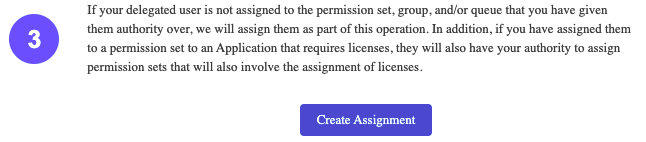
Click on "Create Assignment" to complete the delegation setup.
Unassign Delegated Managers
Search for Delegated Manager
To remove a delegated manager, search for the user to remove. (Note: only users currently assigned as AdminCentral® delegated managers will show up.)

Select Assignment to Remove
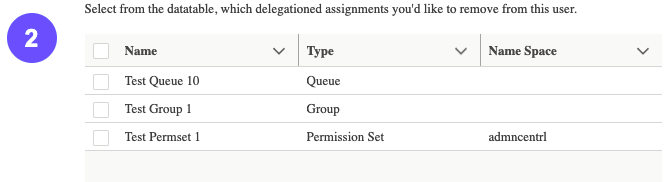
Select any of the delegated assignments to remove the user from.
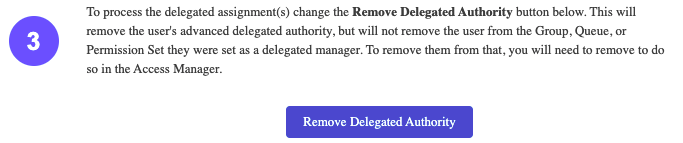
Remove Delegated Authority
Click on "Remove Delegated Authority" to complete the removal.