Getting Started
Creating a New Report
To access the Report Builder:
Navigate to Report Builder
From the AdminCentral app, click on the Report Builder tab in the navigation menu.
View Existing Reports
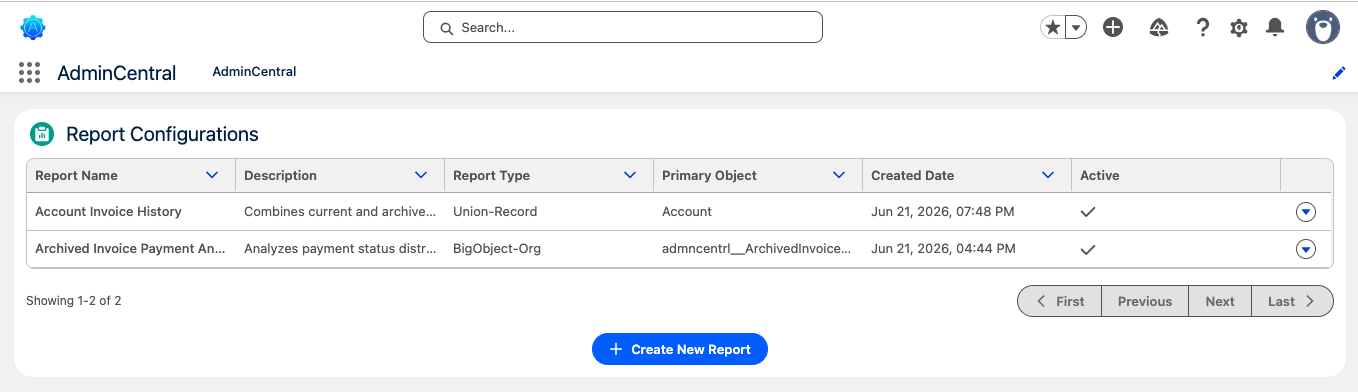
The Report Configurations list displays all existing reports with their name, description, type, primary object, created date, and active status. Use pagination controls to navigate through large lists.
Click "Create New Report"
Click the Create New Report button to launch the 5-step report wizard.
Editing an Existing Report
To modify an existing report configuration:
- Locate the report in the Report Configurations list
- Click the dropdown arrow in the Actions column
- Select Edit to open the report in the wizard
- Make your changes and click Save Report on the final step
When editing a report, clicking "Back to List" will prompt you to confirm. Any unsaved changes will be lost.
Step 1: Report Type
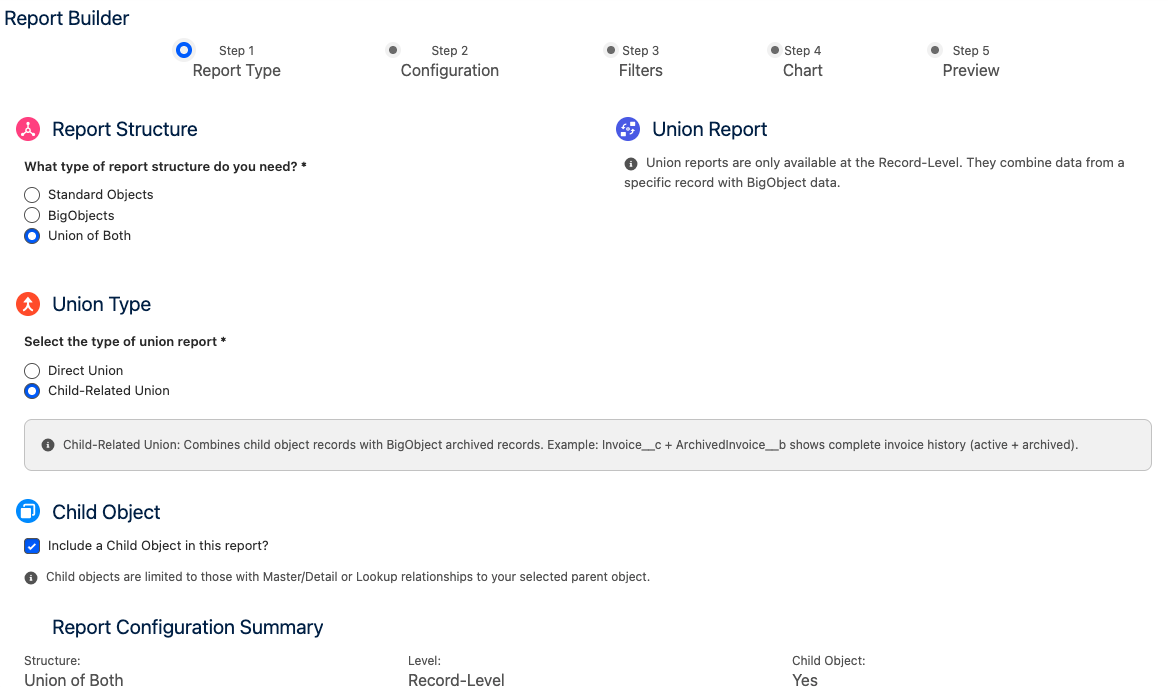
The first step defines the fundamental structure of your report. Your selections here determine what options are available in subsequent steps.
Report Structure Required
Choose the data source for your report:
| Option | Description | Use Case |
|---|---|---|
| Standard Object | Query data from any standard or custom Salesforce object that is queryable, triggerable, and supports compact layouts. | Active operational data |
| BigObject | Query data from BigObjects. BigObjects support both Org-Level and Record-Level reports. Record-Level requires field linkage configuration. | Historical/archived data |
| Union | Combine data from a Standard Object and a BigObject into a unified report. Only available for Record-Level reports. | Complete timeline views |
Report Level Required for Standard/Union
Define the context in which the report will be displayed:
| Option | Description | Placement |
|---|---|---|
| Org-Level | Report displays organization-wide data. Filters determine which records are included. No record context required. | App pages, Home pages |
| Record-Level | Report displays data related to a specific record. The report automatically filters based on the current record's context. | Record pages, Related lists |
Child Object Option
When creating a Standard Object report at either level, you can optionally include a Child Object:
- Without Child Object: Report queries and displays fields from the parent object only
- With Child Object: Report can include fields from both parent and child objects. Child objects are limited to those with Master-Detail or Lookup relationships.
Union reports automatically set the level to Record-Level and require you to configure field mappings between the Standard Object and BigObject in Step 2.
Step 2: Configuration
Configure the specific objects, fields, and relationships for your report. The options displayed depend on your Step 1 selections.
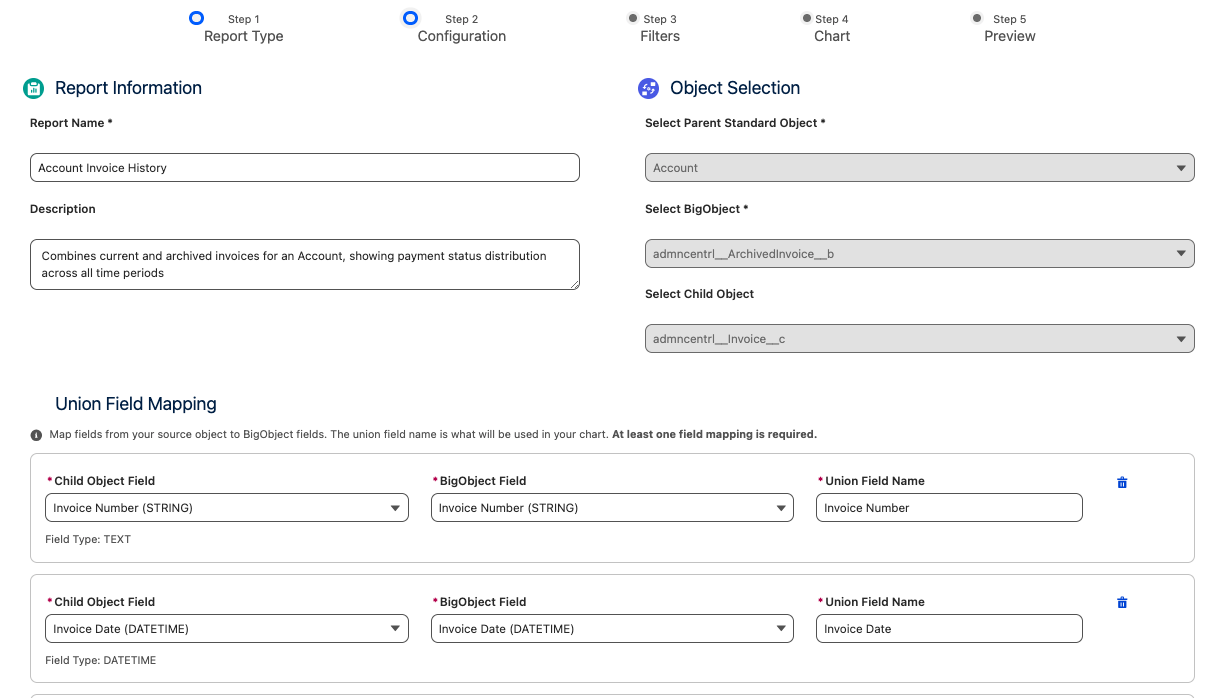
Report Information
Report Name Required
Enter a unique, descriptive name for your report. This name appears in the Report Configurations list and helps users identify the report's purpose.
Description Optional
Add a detailed description explaining what data the report displays, who should use it, or any important notes.
Object Selection
Based on your report structure, select the appropriate object(s):
- Select Standard Object: Choose the primary object for your report from the dropdown. Only objects that are queryable, Apex-triggerable, and support compact layouts are available.
- Select Child Object (if enabled): If you enabled "Include Child Object" in Step 1, a second dropdown appears showing objects with Master-Detail or Lookup relationships to your selected parent.
Note: When editing a report, object selections are locked to prevent data inconsistencies. Create a new report if you need different objects.
For Org-Level BigObject Reports:
- Select the BigObject from the dropdown
- Proceed to field selection
For Record-Level BigObject Reports:
- Primary Object: Select a Standard Object where the report will be displayed
- BigObject: Select the BigObject containing your data
- Configure Linkage: See BigObject Linkage section below
- Parent Standard Object: Select the primary Standard Object
- BigObject: Select the BigObject to combine with the Standard Object
- Configure Field Mapping: See Union Field Mapping section below
Union reports merge data from both sources into a single dataset for charting.
Field Selection
Select the fields to include in your report. Available fields depend on your object selection:
- Parent Fields: Fields from your primary object. Optional if a child object is selected.
- Child Fields: Fields from your child object. Required if a child object is selected.
Field types are displayed in parentheses (e.g., "Amount (CURRENCY)", "Stage (PICKLIST)") to help you understand the data type when configuring charts.
As you select fields, they appear in a "Selected Fields" summary card at the bottom. Click the X next to any field to remove it.
BigObject Record Linkage
For Record-Level BigObject reports, you must configure how BigObject records relate to the current record context:
| Field | Description |
|---|---|
| BigObject Field (Indexed Only) | Select an indexed field from the BigObject. Only indexed fields can be used in WHERE clauses. This field stores the reference to the parent record. |
| Standard Object Field | Select the field from the Standard Object to match against. Typically this is Id, but could be any unique identifier field. |
Example Link Logic:
WHERE AccountId__c = [Current Record's Id]
Union Field Mapping
For Union reports, map corresponding fields between your Standard Object and BigObject:
Click "Add Field Mapping"
Each mapping creates a unified field that combines data from both sources.
Configure Each Mapping
- Source Object Field: Field from your Standard Object (or Child Object if selected)
- BigObject Field: Corresponding field from the BigObject
- Union Field Name: The display name for this combined field in your chart
Add Multiple Mappings
Add as many field mappings as needed. At minimum, one mapping is required.
Ensure mapped fields have compatible data types. For example, map a CURRENCY field to another CURRENCY field, not to a TEXT field.
Step 3: Filters
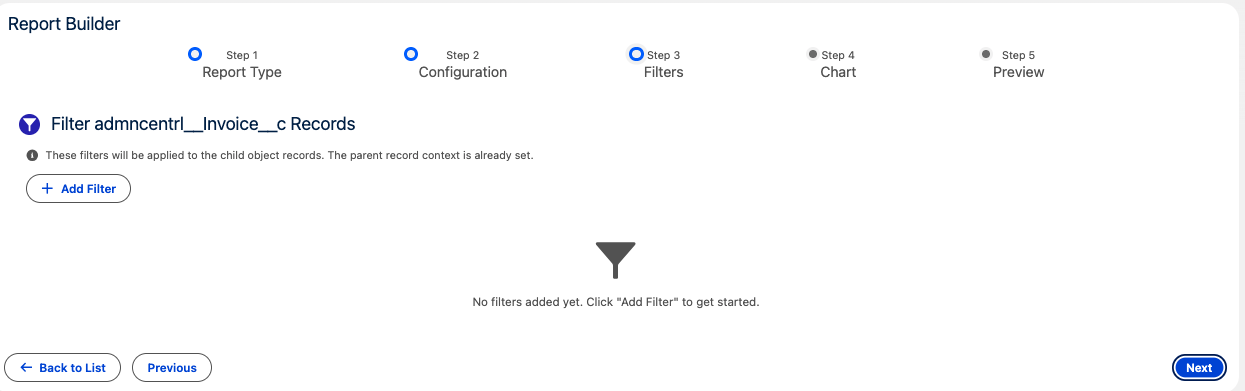
Add filters to narrow down the data included in your report. Filter availability depends on your report configuration:
| Report Type | Filter Behavior |
|---|---|
| Org-Level Reports | Filters apply to the parent object. Use filters to define which records are included in the report. |
| Record-Level with Child Object | Filters apply to the child object. The parent record context is automatically set; filters further refine child records. |
| Record-Level without Child | No filters needed. The report automatically uses the current record context. |
Adding Filters
Click "Add Filter"
A new filter row appears in the Active Filters section.
Configure the Filter
- Field: Select the field to filter on
- Operator: Choose the comparison operator (equals, not equals, greater than, less than, contains, etc.)
- Value: Enter the value to compare against
Add More Filters (Optional)
Click "Add Filter" again to add additional filter conditions. Multiple filters are combined with AND logic.
Available Filter Operators
| Operator | Description | Supported Field Types |
|---|---|---|
| Equals | Exact match | All types |
| Not Equals | Does not match | All types |
| Greater Than | Value is greater than specified | Number, Currency, Date |
| Less Than | Value is less than specified | Number, Currency, Date |
| Greater or Equal | Value is greater than or equal to specified | Number, Currency, Date |
| Less or Equal | Value is less than or equal to specified | Number, Currency, Date |
| Contains | Value contains the specified text | Text, Picklist |
- Filters are optional -- skip this step if you want all records included
- For RecordType filtering, use the RecordType field and the Developer Name as the value
- Date filters support relative values like TODAY, LAST_N_DAYS:7, etc.
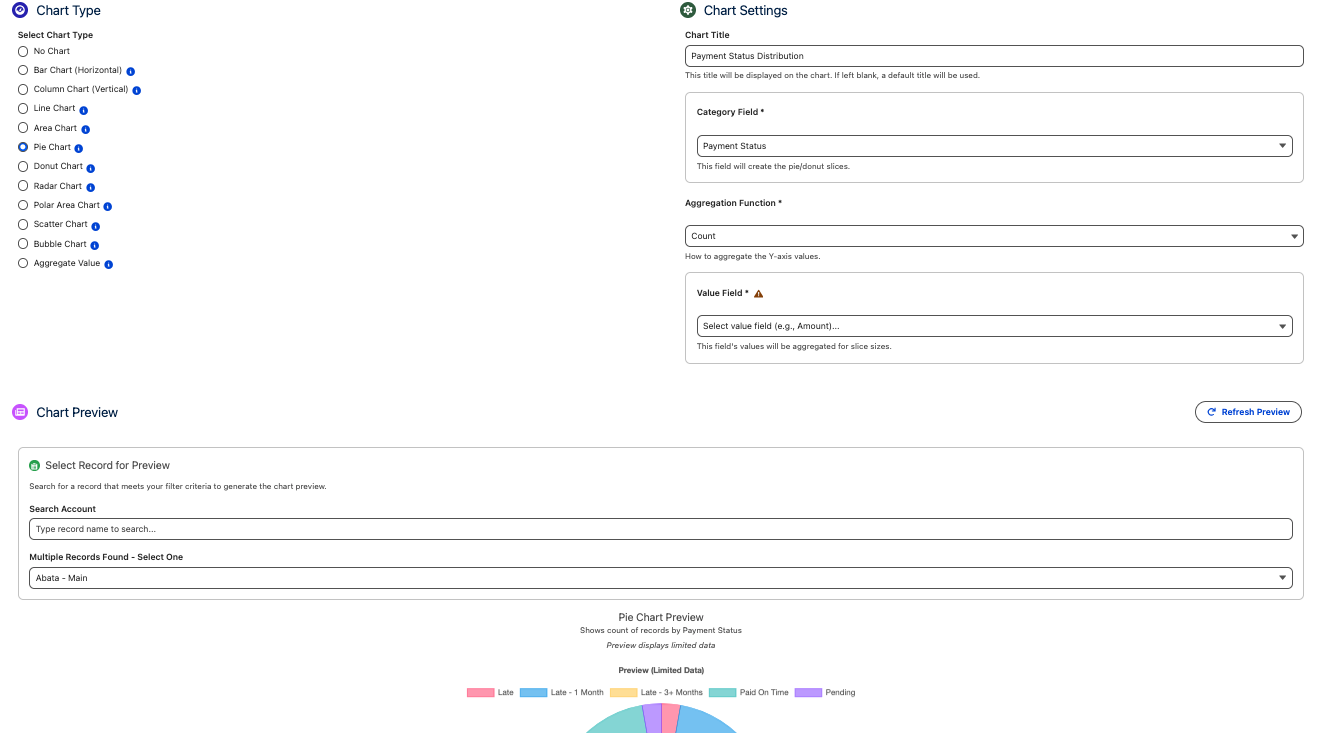
Step 4: Chart Configuration
Configure how your data is visualized. Select a chart type and configure the appropriate axes and aggregation.
Available Chart Types
| Chart Type | Best For | Required Configuration |
|---|---|---|
| Bar Chart | Comparing values across categories | X-Axis (categories), Y-Axis (values), Aggregation |
| Line Chart | Showing trends over time | X-Axis (categories), Y-Axis (values), Aggregation |
| Pie Chart | Showing proportions of a whole | Category Field, Value Field, Aggregation |
| Donut Chart | Proportions with center space for totals | Category Field, Value Field, Aggregation |
| Scatter Chart | Correlation between two numeric values | X-Axis (numeric), Y-Axis (numeric) |
| Bubble Chart | Three-dimensional data comparison | X-Axis, Y-Axis, Bubble Size Field |
| Aggregate Value | Single KPI/metric display | Aggregation Function, Field to Aggregate, Thresholds |
Chart Settings
Chart Title Optional
Enter a custom title for your chart. If left blank, a default title based on your configuration will be used.
Axis Fields
Select the fields for your chart axes. Available options depend on chart type:
- X-Axis (Categories): The field used to group/categorize data (e.g., Stage, Status, Date)
- Y-Axis (Values): The numeric field to aggregate (e.g., Amount, Count)
Aggregation Function
Choose how values are combined:
- COUNT: Count the number of records
- SUM: Add all values together
- AVG: Calculate the average
- MIN: Find the minimum value
- MAX: Find the maximum value
Color Thresholds (Aggregate Value Charts Only)
For Aggregate Value chart types, configure color-coded thresholds to visually indicate performance:
| Level | Operator | Value | Color |
|---|---|---|---|
| High | Greater than, Greater or Equal, etc. | Threshold value | Color picker (default: green) |
| Medium | Between high and low | Threshold value | Color picker (default: yellow) |
| Low | Less than, Less or Equal, etc. | Threshold value | Color picker (default: red) |
A live preview of your chart appears below the configuration. For Record-Level reports, you can search for a specific record to generate the preview with real data.
Step 5: Preview & Save
Review your report configuration and save it to the system.
Review Configuration
The preview step shows a summary of your report configuration. Review all settings before saving.
Click "Save Report"
Click the Save Report button to save your configuration. The report is stored as a ReportBuilder__c record.
Return to List
After saving, you're automatically returned to the Report Configurations list. Your new report appears in the list with an Active status.
- Report name and description
- Report type configuration (structure, level, child object option)
- Object and field selections
- Filter conditions
- Chart configuration (type, axes, aggregation, thresholds)
- Configuration version for tracking changes
Managing Reports
The Report Configurations list provides several actions for managing your reports:
Available Actions
| Action | Description |
|---|---|
| Edit | Open the report in the wizard to modify its configuration. Navigate through steps and save changes. |
| Activate | Enable an inactive report. Only active reports are visible to end users. |
| Deactivate | Disable a report without deleting it. Deactivated reports are hidden from end users but can be reactivated. |
| Delete | Permanently remove a report configuration. This action cannot be undone. |
Pagination
The list displays 15 reports per page. Use the pagination controls to navigate:
- First: Jump to the first page
- Previous: Go to the previous page
- Next: Go to the next page
- Last: Jump to the last page
The pagination info shows "Showing X-Y of Z" to indicate your current position.
Deleting a report requires confirmation. You'll see the report name in the confirmation dialog to prevent accidental deletions.
Best Practices
Naming Conventions
- Use descriptive names that indicate the report's purpose (e.g., "Open Opportunities by Stage", "Monthly Revenue Trend")
- Include the object name for clarity (e.g., "Account - Annual Revenue Distribution")
- For Record-Level reports, indicate the context (e.g., "Contact Activities - This Account")
Performance Considerations
- Use Filters: Apply appropriate filters to limit the data set, especially for Org-Level reports
- BigObject Indexing: Ensure BigObject fields used in linkage are properly indexed
- Field Selection: Only select fields you actually need for the chart; excess fields increase query time
- Aggregation: Use COUNT when possible as it's typically faster than SUM/AVG on large datasets
Security Best Practices
- Report Builder respects Salesforce security -- users only see data they have access to
- Standard Object queries run in USER_MODE, enforcing field-level and object-level security
- Use the Deactivate feature to temporarily hide reports during testing or maintenance
- Test reports with users of different profiles to verify appropriate data visibility
Union Report Tips
- Ensure field types match between Standard Object and BigObject mappings
- Use consistent field naming in Union Field Name for clarity
- Consider date fields carefully -- ensure both sources use compatible date formats
- Test with records that have data in both sources to verify the union works correctly
Use the Chart Preview feature extensively before saving. For Record-Level reports, search for multiple different records to ensure the report displays correctly across various data scenarios.